Troubleshooting
This chapter is intended to provide checks and solutions to common issues.
No POD Detected
If Acquire mode reports that no POD was detected:
- Confirm the hardware is powered and physically connected.
- If the application is in Process mode, choose Mode > Acquire.
- Choose File > Reconnect and check the bottom-left status area.
- Confirm any required hardware drivers were installed with the release.
License Verification or Refresh Warnings
The application can require a license refresh while connected to the Vimotis unit and the internet. If a license warning appears:
- Connect the Vimotis unit.
- Confirm internet access is available.
- Relaunch the software, or switch to Acquire and choose File > Reconnect.
- If the issue persists, record the exact message shown and contact Vimotis.
Recording Does Not Start
- Confirm the hardware is connected and recognized.
- Confirm a valid save folder is selected.
- Check the file name if entering one; a blank name uses a timestamp.
- Confirm duration and trigger settings are appropriate for the planned run.
- Watch the status message area for immediate error text.
- If live preview paused after inactivity, choose Start Tap to resume it. Adjust the timeout in Acquire Preferences if needed.
File Load or Processing Problems
- Confirm the selected file is an HDF5 file created by the Vimotis workflow.
- If no channels appear after loading, verify the file contains expected data and labels.
- If results appear unexpected, review calibration and processing parameters before saving.
- For batch workflows, verify that selected files use consistent sensor labeling.
- If an archive does not match the active sensors or calibration data are missing, review the warning and the offered run snapshot or nominal estimate before reprocessing. A nominal estimate is not a measured calibration.
- A filename followed by
*in Process has tracked unsaved run changes. Choose File > Save to retain them.
Export Issues
- Confirm a file is loaded before attempting CSV or figure export.
- Confirm the channels you want are checked before exporting.
- Review overwrite prompts carefully when exporting to an existing location. If the filename appears red in the text field, a file with that name already exists in the specified folder and will be overwritten.
- If full-rate analog export is unavailable, verify checked analog data is present in the loaded file.
- If time-normalized stride export is disabled, select an eligible data type and enable foot contacts in the workspace. In Batch, each selected file needs saved contacts, or (Re)estimate foot contacts must be enabled. Hover over the disabled option for its requirements.
Useful Built-In Support Tools
- Help > Log Files: open the application log folder.
- Help > Check for Updates...: verify whether a newer version is available.
- Help > About: confirm the installed version, build labeling, and release notes.
Report a Bug
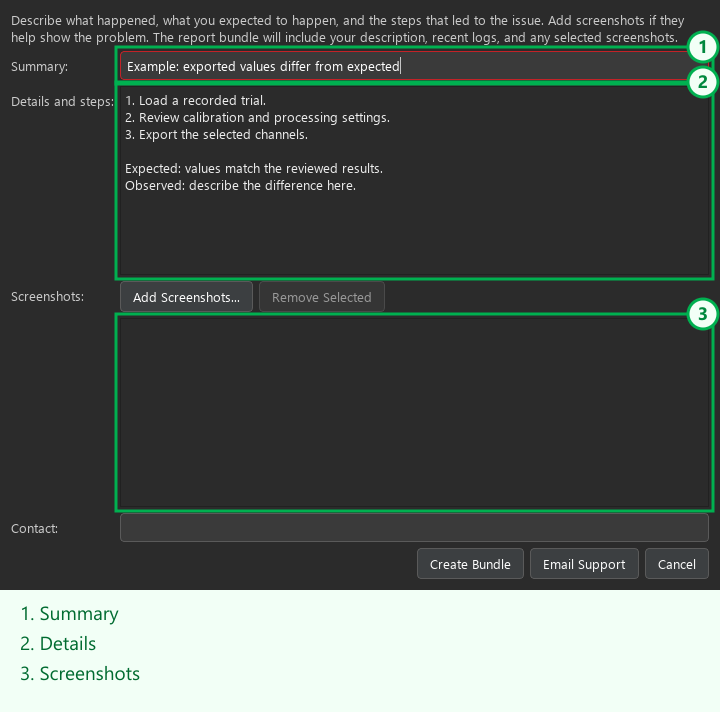
Choose Help > Report Bug. Enter a summary, what happened, what you expected, and steps to reproduce it. Optionally add screenshots and contact details.
Create Bundle saves a report containing the description, recent logs, and selected screenshots, then opens its folder. It does not send the report.
Email Support creates the bundle and attempts to open an email draft with it attached. If attachment fails, the app opens the bundle folder and asks you to attach it manually. Review the draft and attachment before sending. If no draft opens, email the bundle to info@vimotis.com yourself.
Support Escalation
If a problem cannot be resolved through the procedures in this manual, document the software version, the dataset involved, the action being performed, and any error messages shown in the application before contacting Vimotis support (info@vimotis.com).